Learning how to connect Instagram to Gemini gives marketers a practical way to combine Instagram performance data with AI-powered analysis, reporting, content ideas, and automation.
Instagram is not connected by simply logging into Gemini and selecting Instagram. In most workflows, Instagram data reaches Google Gemini through a supported connector, automation platform, data integration service, or custom connection.
To understand how to connect Instagram to Gemini, first make sure you have access to an Instagram Business or Creator account and the permissions required by your chosen integration. Then connect Instagram through a compatible connector or automation platform and make that data available to Gemini or Gemini Enterprise. After the connection is established, Gemini can analyze Instagram Insights, compare posts and Reels, summarize audience behavior, generate content ideas, and support Instagram posting automation.Key Takeaways
- Instagram usually reaches Gemini through a connector or integration layer rather than a simple native Instagram login.
- Instagram Business Gemini integration can make reporting and performance data available for AI analysis.
- Gemini can help analyze Reels, posts, reach, impressions, engagement, and audience insights.
- Automation platforms can combine Gemini for Instagram with caption generation, content ideas, and publishing workflows.
- Available actions depend on Instagram permissions, connector capabilities, and account type.
What Does Connecting Instagram to Gemini Mean?
An Instagram Gemini integration creates a bridge between Instagram data and Google Gemini.
Connecting Instagram and Gemini can make information such as post performance, Reels performance, reach, impressions, engagement data, follower activity, profile visits, and audience insights available for AI-powered analysis.
This allows marketers to use Instagram data in Gemini for reporting, performance interpretation, content planning, and other marketing workflows.
Can Gemini Access Instagram Directly?
Knowing how to connect Instagram to Gemini also means understanding that Gemini may depend on an external integration layer.
Instagram is generally accessed through a compatible integration, connector, automation platform, data store, or custom MCP server.
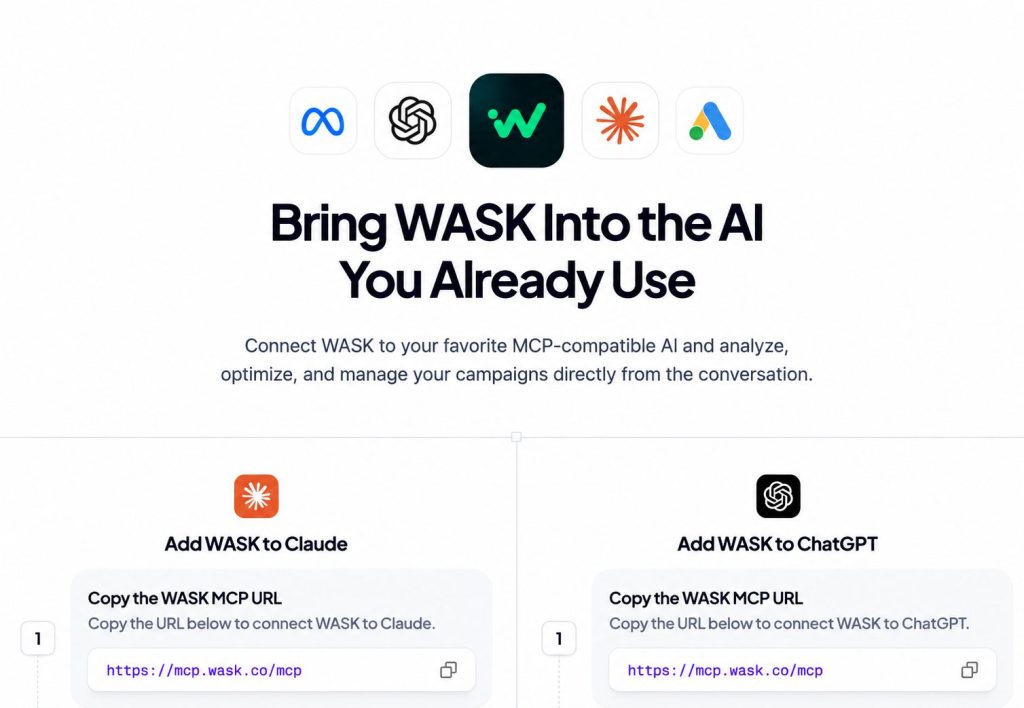
This distinction matters when learning how to connect Instagram to Gemini. In practice, the architecture usually looks like this:
Instagram → Connector or Integration → Gemini
The connector provides the bridge between the Instagram account and the Gemini environment.
What You Need Before Connecting Instagram to Gemini
Before building a Google Gemini Instagram integration, prepare the accounts and permissions required by your chosen connection method.
Instagram Business or Creator Account
Most professional integrations are designed around an Instagram Business account or Instagram Creator account.
These account types provide access to business features and Instagram Insights.
Correct Meta Permissions
The service connecting to Instagram may request permission to access specific Instagram or Meta resources.
The permissions required depend on whether the workflow is focused on analytics, content management, or publishing.
Gemini or Gemini Enterprise Access
The Gemini environment you use determines which connection methods are available. Gemini Enterprise can work with external business data through supported connectors, data stores, and custom integration methods.
A Compatible Connector
You also need a connector capable of retrieving Instagram data and exposing it to Gemini.
How to Connect Instagram to Gemini Step by Step
The exact setup varies by provider, but the overall process for how to connect Instagram to Gemini is similar across most integration platforms.
| Step | What to Do |
|---|---|
| 1. Choose an Instagram-to-Gemini Connector | For analytics, choose a connector that can retrieve Instagram Insights and make reporting data available to Gemini. For content automation, choose a workflow platform that can connect Gemini with Instagram publishing actions. For enterprise environments, a supported connector or custom MCP server may provide more control. |
| 2. Connect Your Instagram Account | Open the connector and select Instagram or Instagram for Business as the data source. Sign in using the Meta account associated with the Instagram profile and choose the relevant Business or Creator account. |
| 3. Authorize Data Access | Review the requested permissions carefully. The integration may need access to profile information, posts, media, performance metrics, or publishing capabilities depending on the workflow. |
| 4. Connect the Data Source to Gemini | The next step in how to connect Instagram to Gemini is making the selected Instagram data available to Gemini. Depending on the integration, this may involve creating a data source, API connection, automation workflow, or MCP-based connection. |
| 5. Test the Connection | Once connected, ask Gemini a simple question that requires Instagram data. “Show my five highest-engagement Instagram posts from the last 30 days.” If Gemini can return relevant information from the connected source, the integration is working. |
How to Use Instagram Insights in Gemini
One of the strongest reasons to learn how to connect Instagram to Gemini is performance analysis.
Instagram Insights with Gemini can make large amounts of social media data easier to interpret.
Instead of manually comparing several posts, you can ask Gemini to review reach, impressions, engagement, saves, shares, and profile visits across a selected time period.
For example:
Analyze my Instagram performance from the last 30 days. Compare reach, impressions, engagement, saves, shares, and profile visits. Identify the three biggest performance changes and explain what may have contributed to them.How to Analyze Reels Performance with Gemini
Reels often need to be evaluated differently from static posts.
Once the relevant data is connected, analyze Instagram with Gemini by comparing Reels across metrics such as:
- reach
- views
- likes
- comments
- shares
- saves
- engagement rate
- follower growth
A useful prompt might be:
Review my Instagram Reels from the last 60 days. Rank them by engagement and reach, identify recurring themes among the strongest performers, and suggest five new Reel concepts based on those patterns.How to Analyze Instagram Posts with Gemini
The same workflow can be used for regular Instagram posts.
For example:
Compare my Instagram posts from the last 30 days. Identify which content formats, topics, hooks, and calls to action generated the strongest engagement. Separate patterns supported by the data from ideas that require further testing.This is where Instagram data in Gemini becomes useful beyond simple reporting.
Instead of only displaying numbers, Gemini can organize performance data into potential insights and testing opportunities.
How to Use Gemini for Instagram Captions and Content Ideas
Gemini does not need direct Instagram access to help create content.
You can use Gemini for Instagram to:
- generate caption ideas
- rewrite existing captions
- create hooks
- brainstorm Reels concepts
- build content calendars
- create variations of successful posts
- summarize audience themes
- develop calls to action
Instead of asking:
“Give me 10 Instagram Reel ideas.”
You could ask:
Based on my 10 highest-performing Reels from the last 90 days, create 10 new Reel concepts that preserve the strongest recurring hooks without copying the original content.How to Automate Instagram Posting with Gemini
For teams researching how to connect Instagram to Gemini, automation is often the next step after analytics.
Instagram automation with Gemini can extend beyond performance analysis.
Automation platforms can connect Gemini-generated content with Instagram publishing workflows.
A typical workflow may:
- Add a new topic to a content database.
- Use Gemini to generate an Instagram caption.
- Prepare the media and copy.
- Send the content to an Instagram publishing service.
- Collect performance data for future analysis.
This makes how to connect Instagram to Gemini relevant not only for reporting but also for repeatable content operations.
Can Gemini Publish Directly to Instagram?
Gemini itself should not be treated as the Instagram publishing platform.
Publishing usually requires a workflow or connector that has permission to perform actions on Instagram.
The distinction is simple:
Gemini creates or analyzes → the integration executes the Instagram action.
Best Use Cases for an Instagram Gemini Integration
A well-configured Instagram Business Gemini integration can support several marketing workflows.
Instagram Performance Reporting
Use Gemini to summarize Instagram Insights and highlight meaningful changes in reach, engagement, and content performance.
Reels Analysis
Compare Reels performance and identify recurring characteristics among stronger content.
Audience Analysis
Use available Instagram engagement data and audience insights to understand how different content performs.
Content Ideation
Turn proven content patterns into new post, Reel, and caption ideas.
Reporting Automation
Generate recurring summaries for marketers, clients, or internal teams.
Instagram Posting Automation
Combine AI-generated captions and content ideas with external publishing workflows.
These use cases show why how to connect Instagram to Gemini is not only a technical integration question.
The real value comes from deciding what Instagram data Gemini should analyze and what actions should follow that analysis.
Gemini vs. Instagram Insights
Instagram Insights provides native Instagram performance data, including reach, engagement, content performance, and audience information.
Google Gemini adds an interpretation layer by explaining patterns, summarizing performance, comparing metrics, and generating action ideas.
Instagram Insights remains the underlying source of truth for Instagram performance data. Gemini works best as an additional analysis layer.
Connect Instagram Data With AI-Powered Analysis
Understanding how to connect Instagram to Gemini is ultimately about creating a reliable path between Instagram data and Gemini’s AI capabilities.
For analytics, connect Instagram Insights and use Gemini to analyze posts, Reels, engagement, audiences, and content performance.
For automation, combine Gemini with a compatible workflow platform that can generate content and execute supported Instagram actions.
The strongest Instagram Gemini integration is not simply the one that moves data between two platforms. It is the one that turns that data into clearer reporting, better content decisions, faster analysis, and repeatable social media workflows.
Frequently Asked Questions
Can Gemini access Instagram?
Gemini can work with Instagram data when that information is provided through an appropriate connector, integration, data source, or workflow.
How do I connect Instagram to Gemini?
To understand how to connect Instagram to Gemini, connect an eligible Instagram Business or Creator account to a compatible integration service, authorize access, and make the relevant Instagram data available to Gemini.
Can Gemini analyze Instagram Insights?
Yes. If Instagram Insights data is available through your connected workflow, Gemini can summarize and compare metrics such as reach, impressions, engagement, and content performance.
Can Gemini analyze Instagram Reels?
Yes, as long as the necessary Reels performance metrics are available through the connected data source.
Can Gemini post directly to Instagram?
Usually, the publishing action is handled by the connected automation or Instagram integration rather than Gemini itself.
Gemini can generate captions, content ideas, or instructions used by the workflow.
Do I need an Instagram Business account?
Professional integrations commonly rely on an Instagram Business or Creator account because these account types provide access to business features and Instagram Insights.